When you create ‘child’ folders within a ‘parent’ folder, the parent folder will, by default, be empty. You can populate a page within this parent folder with introductory content that directs users to the ‘child’ sub-sections.
Alternatively, or in addition to the above, you can set up a page that summarises the ‘child’ content in boxes as shown below. This set-up might take a little ‘trial and error’ before you get used to the approach.
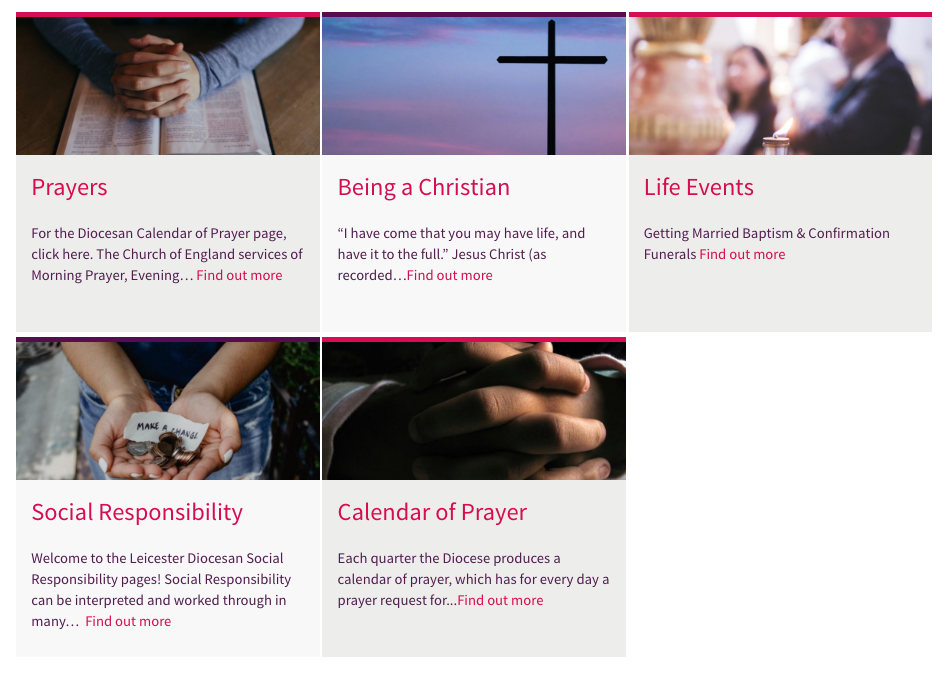
To set up the landing page ‘boxes’, add the following into the page editor.
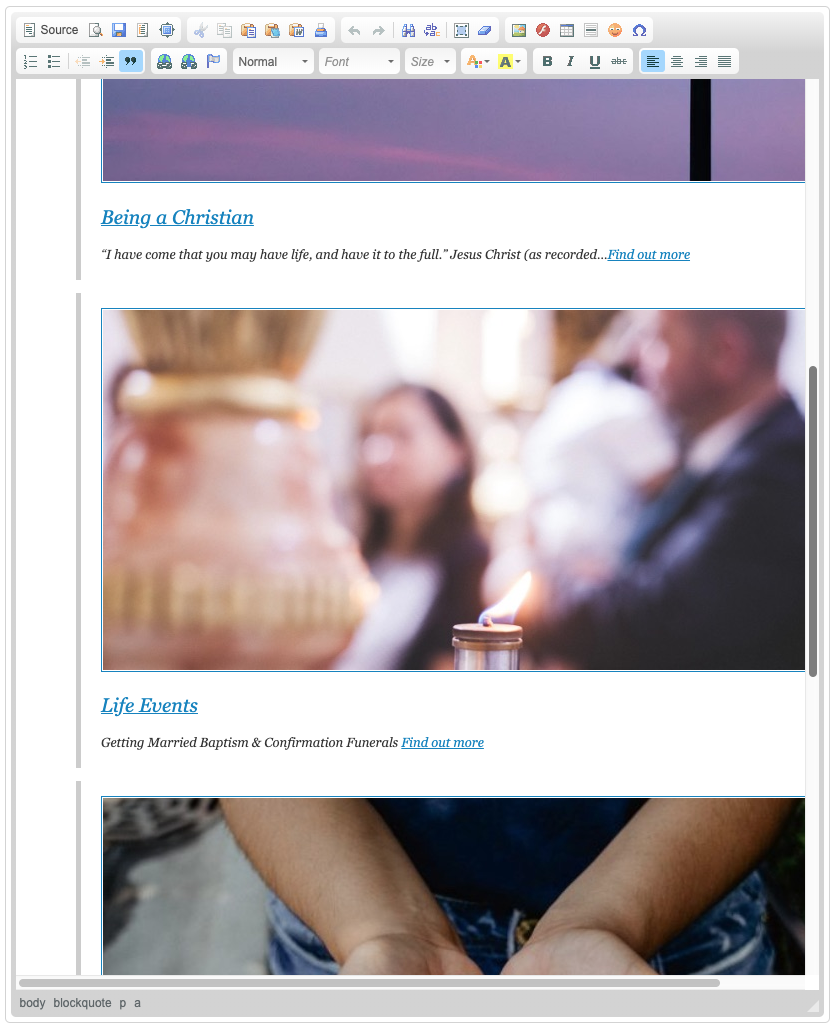
- Firstly add the photo associated with the ‘child’ section. To maintain consistency make sure your photos are all the same aspect ratio.
- add the heading of the child section and select over the heading text, defining it as a Heading 2 style.
- add your summary text content and, if need be, a find out more link.
- if you wish the photo and the heading to link to the child folder, select these and link them also.
- select over all the content and click on the blockquote button in the page editor. This will assign all the pre-defined styles and layout to the content you wrap the blockquote in.
- Press the return button on your keyboard twice and repeat the above process for the next ‘child’ section you wish to link to.
- Once you’ve added all your content and wrapped them in the blockquotes, you might need to delete empty paragraph spaces between the blockquotes, being careful that the blockquotes don’t merge into one another. They should look like the example below.
- You will need to let us know which folders you want to set up as 'landing pages' so that we can assign the correct styles to these folders only. Email us to request this.
- If you experience difficulties with this approach, do get in touch with us.
Note: When you are new this type of process and you are editing existing content, we would suggest, as a precaution, that you manually backup the HTML content before you edit the page. To do this, simply click on the Source button in the page editor and copy and paste all the content (HTML) into a text document on your local machine. This will allow you to restore the original content easily, if you have problems. Click on the source button again to start editing in the normal page editing view.